
If you have just asked "how do I connect my coffee roaster to Artisan?", you have asked the question our support desk hears most. Artisan is the free, open-source roast logger specialty roasters use worldwide, and connecting it is usually a five-minute job — once you know the two things that catch most people. Here is the USB setup, the Bluetooth trap, and the fixes that solve nine problems in ten.
What Artisan Does for Your Roastery
Artisan records your bean temperature and environment temperature in real time and draws the roast curve on your laptop: charge, turning point, first crack, development time and drop. For a commercial roastery this matters for three reasons:
-
Repeatability — once a profile wins, you can roast against the saved curve batch after batch
-
Training — new operators learn faster when they can see rate-of-rise instead of guessing by smell
-
Quality control — wholesale customers increasingly ask for roast logs as proof of consistency
All YOSHAN roasters with digital temperature controllers support Artisan data logging — including the DY series (1–2 kg) and the YS series (6–300 kg) with Siemens PLC control.
Connecting via USB (Recommended)
USB is the most stable connection method and what we recommend for production roasting:
-
Install Artisan from artisan-scope.org (Windows, macOS or Linux).
-
Install the USB serial driver. Most machines use a CH340 or CP210x USB-to-serial chip; if your laptop does not recognize the cable, install the matching driver first. Our team sends the correct driver package with every machine.
-
Connect the cable from the roaster’s data port to your laptop, then open Artisan → Config → Device, and select the device type listed in your machine’s quick-start sheet.
-
Select the serial port (Config → Serial Port). On Windows this appears as COM3/COM4; on macOS as /dev/tty.usbserial.
-
Press ON in Artisan — the temperature readings should appear within seconds.
Connecting via Bluetooth
Selected YOSHAN models broadcast a Bluetooth signal (it appears as DY_Machine or similar in your device list). One important detail that catches many buyers:
Do not pair the roaster in your operating system’s Bluetooth menu. A real case from our support inbox: a customer’s laptop could see DY_Machine but Artisan would not connect — because Windows had already claimed the connection. The correct sequence is:
-
Make sure the roaster is not paired/connected in Windows or macOS Bluetooth settings (remove it if it is)
-
Open Artisan and select the Bluetooth/serial device inside Artisan itself
-
If the connection still fails, switch to the USB cable — USB always takes priority for reliability in a production environment
Troubleshooting Checklist
| Symptom | Most common cause | Fix |
|---|---|---|
| No COM port appears | Serial driver not installed | Install CH340/CP210x driver, replug cable |
| Bluetooth visible but won’t connect | OS already paired the device | Unpair in OS, connect inside Artisan only |
| Readings freeze mid-roast | Cable interference near motors | Use a shielded USB cable, route away from the drum motor |
| Temperature shows wrong units | Celsius/Fahrenheit mismatch | Artisan → Config → Temperature → select unit |
| Curve looks jagged | Sampling interval too short | Set sampling to 2–3 seconds |
If none of these solve it, our engineers do live video-call support — screen-share your Artisan window and we will configure it with you. This support is free for the life of the machine.
Which YOSHAN Roasters Work with Artisan?
-
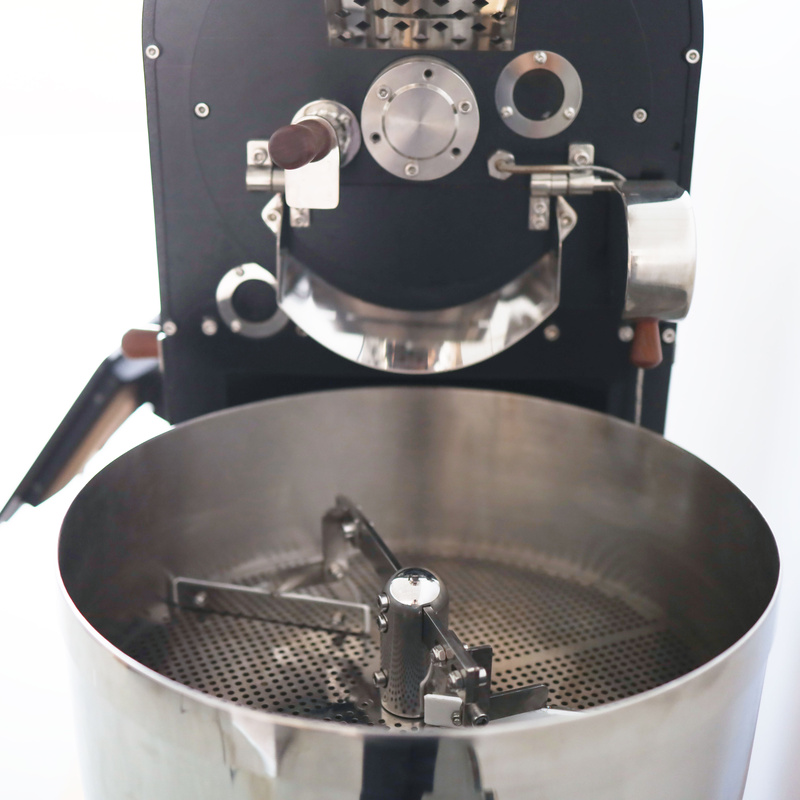
DY series (1–2 kg) — USB data logging standard; Bluetooth on current models. The most popular choice for cafes that roast in-house.
-
YS series (6–300 kg) — Siemens PLC control with data output; suited to roasteries that need automated, repeatable production roasting.
-
Sample roasters (100–600 g) — data logging available on electric models for cupping labs.
Not sure which class fits your volume? Start with our guide on how to choose a commercial coffee roaster.
Reading the First Curve
Once the readings appear, roast one batch you do not mind downgrading and look at three things on the screen. The turning point — the lowest bean temperature after charge — should come cleanly within the first minute or so; if the line keeps falling, your charge temperature is low or the probe is reading air. The rate of rise should climb, then fall steadily through the roast without flat patches or a sharp dip at first crack; a flat patch is the signature of a baked cup, a dip and rebound the sign of too much heat carried into the crack. And the markers — charge, dry end, first crack, drop — should be placed by you, at the moment you see or hear them, because they are what let you compare this curve with the next one. The profile development guide turns those three into a method.
Reading the First Curve
Once the readings appear, roast one batch you do not mind downgrading and look at three things on the screen. The turning point — the lowest bean temperature after charge — should come cleanly within the first minute or so; if the line keeps falling, your charge temperature is low or the probe is reading air. The rate of rise should climb, then fall steadily through the roast without flat patches or a sharp dip at first crack; a flat patch is the signature of a baked cup, a dip and rebound the sign of too much heat carried into the crack. And the markers — charge, dry end, first crack, drop — should be placed by you, at the moment you see or hear them, because they are what let you compare this curve with the next one. The profile development guide turns those three into a method.
Frequently Asked Questions
Which of your machines log to Artisan, and what do they cost?
The DY-1 and DY-2 at USD 2,599 and 3,399 log by USB as standard, with Bluetooth on current models; the manual SD-1.5 and SD-3 at USD 3,299 and 4,599 log the same way; the SD Pro and YS machines record and replay the curve on their own PLC and can send data out as well. The EC-500G sample roaster at USD 1,699 logs for cupping work. Ask for the connection type on the quote.
Can I log two probes — bean and environment — at once?
Yes, that is the normal setup: the temperature module sends both channels and Artisan draws bean temperature, environment temperature and the two rate-of-rise curves. If only one line appears, the second channel is usually unassigned in Config → Device rather than missing from the machine; the quick-start sheet for your model shows which channel is which.
Does Artisan control the machine, or only record it?
On our manual machines it records: you drive the gas and the airflow, Artisan draws what happened and lets you mark charge, first crack and drop. That is what you want while you learn. Automatic control of the burner from a saved curve is the PLC's job on the SD Pro and YS machines, and the PLC guide explains what it can and cannot do.
How do I use a saved curve as a target for the next batch?
Load it as a background curve in Artisan, then roast the next batch on top of it: at each minute you can see whether you are ahead or behind the reference and correct while it still matters. Chase the phase boundaries — dry end, first crack — rather than the absolute temperatures, especially across machine sizes; the profile scaling guide explains why.
What laptop and cable do I need?
Any recent Windows, macOS or Linux laptop, a shielded USB cable routed away from the drum motor, and the serial driver for the module — CH340 or CP210x — which we send with the machine. Keep the laptop on mains power during a session and set Artisan's sampling to two or three seconds; most "the curve froze" reports come down to a cable next to a motor or a laptop that went to sleep.
Final Thoughts
Connecting your coffee roaster to Artisan is a driver, a cable and the right port — and, on Bluetooth, remembering not to pair in the operating system first. Once the curve is on the screen, log every batch from day one; six months later it is the record you will want. If it still will not connect, screen-share with our engineers on a call and we configure it with you. Talk to our engineers.
Get a Quote → WhatsApp +86 184 0771 4607Last updated: September 17, 2026
Pingback: Coffee Roaster Batch Size: Min & Max Load Explained
Pingback: Coffee Roast Profile Development: A Factory Guide
Pingback: Coffee Roaster After-Sales Support: Real Cases and What to Put in Writing | Yoshan
Pingback: Coffee Roaster for Southeast Asia: MY, ID and TH Bean by Bean | Yoshan
Pingback: How to Start a Coffee Roasting Business: Volume, Machine, First Roast
Pingback: PLC Coffee Roaster Automation: What It Does and Cannot Do | Yoshan
Pingback: Coffee Roaster Commissioning: Crate to First Saleable Batch | Yoshan
Pingback: Giesen Alternative: What You Are Paying For, and How to Check | Yoshan
Pingback: Rate of Rise in Production Roasting: RoR for Machine & Consistency